Using Titanium drag and drop in designing your page
- In the initial page layout you will see 'Drop here!' text where you can drag your Layouts, Modules, and Widgets. Click on the icon you wish to include in your page and drag your cursor to the 'Drop here!' location and release the cursor.
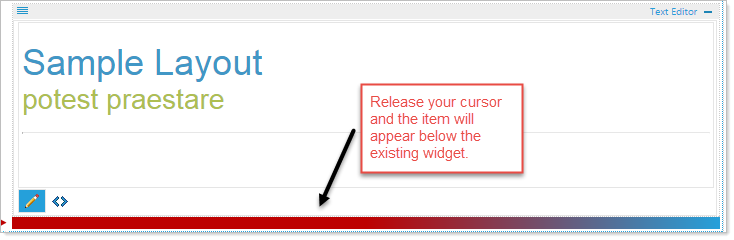
- Once that drop zone is occupied you can drag additional items by dragging the item icon to above or below the existing item until you see a red line, then release the cursor and your selected item will appear in that area.
In this example we drop a Text Editor just below an existing Text Editor headline.