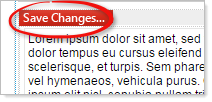
NOTE: You must save changes to the Text Editor before the changes will take effect. The “Save Changes” button will appear on the widget bar when the content of the text editor is modified. (Making changes in “HTML” view will not invoke the “Save Changes” button )
OptionsThese options appear at the top of the page.


Toolbar: The toolbar rides at the top of the page being edited when you click inside the Text Editor widget.
 Save file drop down menu. This can be used to save changes to the Text Editor widget.
 Undo. Clicking this icon will revert changes. You can click the arrow to see a list of changes.
 Redo. Clicking this icon will redo a previously undone change. You can click the arrow to see a list of possible changes.
 Spellchecker. Clicking this icon activates Spell checking mode in the Text Editor.
 Print. Clicking this icon prints the text from the Text Editor.
 Find and Replace. Allows you to search, and replace, the text in the Text Editor.
 Image Manager. Opens the file manager, where you can select uploaded images to display in the Text Editor. Or, you can upload new images from your local file system.
 Document Manager. Opens the file manager, where you can select uploaded documents to display in the Text Editor. Or, you can upload new documents from your local file system.
 Image Map Editor. Select sub-regions of an image to link to various websites (e.g. a world map, in which each continent links to the Wikipedia article for that continent).
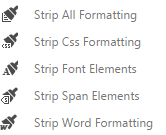
 Format Stripper. Remove various formatting. Clicking on the arrow expands the menu.
 Align Left. Align the content in the text editor to the left.
 Align Center. Align the content in the text editor to the center.
 Align Right. Align the content in the text editor to the right.
 Justify. Justify the content in the text editor.
 Indent. Indent the selected line(s).
 Outdent. Outdent the selected line(s).
 Bullet List. Add bullets to the selected line(s).
 Numbered list. Make a numbered list of the selected line(s).
 Bold. Click to type in bold text. Click again to disengage. Highlight text in the Text Editor and then click to bold the selected text.
 Italic. Click to type in italicized text. Click again to disengage. Highlight text in the Text Editor and then click to italicize the selected text.
 Underline. Click to type in underlined text. Click again to disengage. Highlight text in the Text Editor and then click to underline the selected text.
 Strikethrough. Click to strike through your text. Click again to disengage. Highlight text in the Text Editor and then click to strike through the selected text.
 Superscript. Click to type in superscript. Click again to disengage. Highlight text in the Text Editor and then click to convert the selected text to superscript.
 Subscript. Click to type in subscript. Click again to disengage. Highlight text in the Text Editor and then click to convert the selected text to subscript.
 Foreground Color. Click to select a text color. Highlight text in the Text Editor and select a text color to apply to the highlighted text.
 Font Size. Click the arrow to select the font size, in pixels.
 Paragraph Style. Click the arrow to select the paragraph style.
 Apply CSS Class. Click the arrow to select the CSS class.
 New Paragraph. Create a new paragraph.
 Horizontal Rule. Add a horizontal line to the page.
 Insert Symbol. Click to insert a symbol.
 Insert Table. Click open the Table Wizard, and configure the design and properties of the table.
 Show/Hide Border. Click to toggle border.
 Hyperlink Manager. Add a hyperlink. Select text, an image, etc. and then click the icon to add a hyperlink to the text, image, etc.
 Remove Link. Highlight a link and click this icon to remove the link.