Categories allow you to group event types. There must be a Category for an added (aggregated calendar) or for a regular event on your calendar. For example Education users may have different categories for District events, Campus events, and Athletics events, Local Governments may have separate categories for City Council Meetings, Community Events, and Recycling Schedules. Each Category can be color coded.
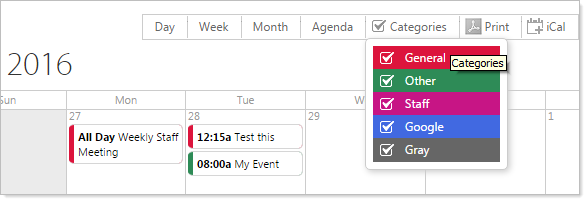
The color coding is displayed in the event display on the calendar and in the Category Legend at the top of the Calendar. You audience can turn off Categories in the Category Legend to view only the those that interest them.
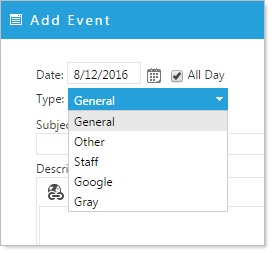
Categories are selected when you add an event, covered in the section Adding Appointments.
Adding and Modifying Categories: Click the Calendar Properties button  .
.
- In the 'Category' Field, click 'Add new record' to add a new Category type.
- Fill in the Name and Color field.
The color field offers 12 colors for your Categories. You can utilize additional colors by adding a Hex Value for a color not included in the selection.
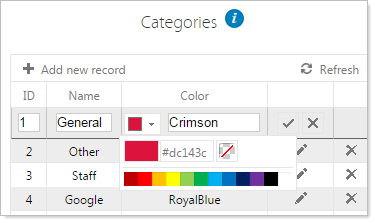
- Click the check mark
 to save changes.
- Modify an event type, click on the pencil icon
 in the row belonging to the specific event Category you'd like to change.
- Make any alterations, then click the check mark to save changes.