Stretch and FillSelecting "Stretch and Fill" will take each image and fill the width and height of the slideshow on display.
In this example we use an image with a vertical orientation. You see the entire image in the Design Mode thumbnail, but the image in Preview (and Published) Display is cropped and filled to the width of the slideshow, the height of the image is centered vertically.
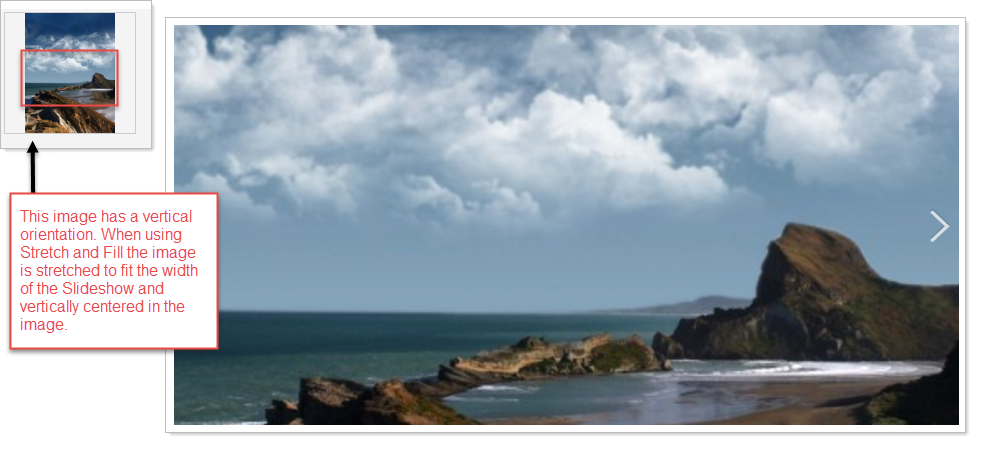
Note: Stretch and Fill is the default behavior for the Image Gallery.
Use Actual SizeSelecting "Use Actual Size " displays the image as it is originally uploaded relative to the width of the slide show
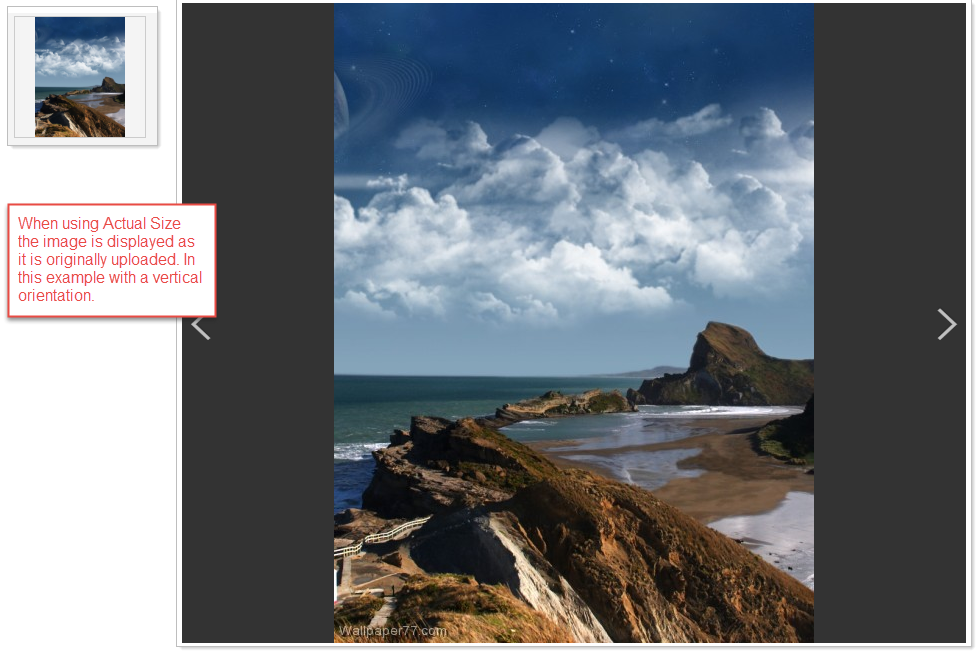
Note: If the original image is too large it is scaled to fit within the Image Gallery area.