Form Objects
A form is built using form objects. There are eight form objects, located on the Titanium editor tab at the bottom of the page.

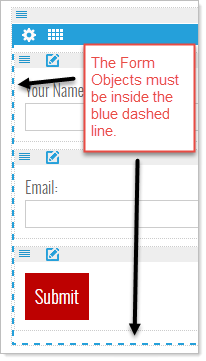
To add a form object to the page, drag it from the editor tab to the form area in the web page builder. The form area is outlined with a blue dashed line.
The form objects you drag to include in the form must be inside that line.
Dropdown
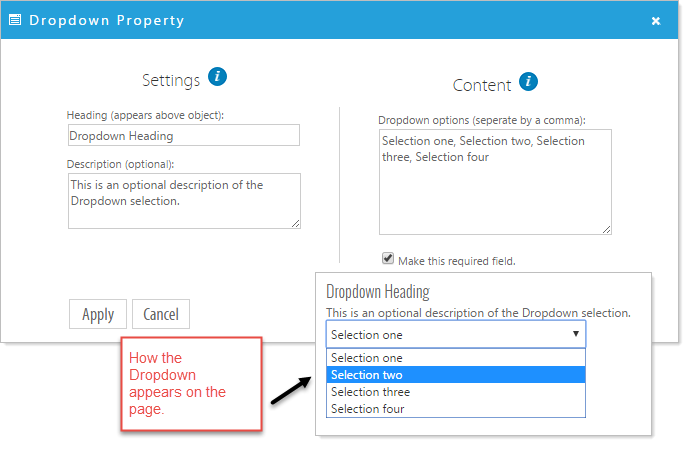
A Dropdown is list representing a set of choices, only one of which can be selected at any time. The advantage of a drop-down menu, compared to radio buttons or check boxes, is that it takes up less space.
Click the 'Edit Form Object' icon  . Fill in the options accordingly. If this is to be a mandatory field on the form, click 'Make this required field', and click 'Apply'.
Radio Buttons
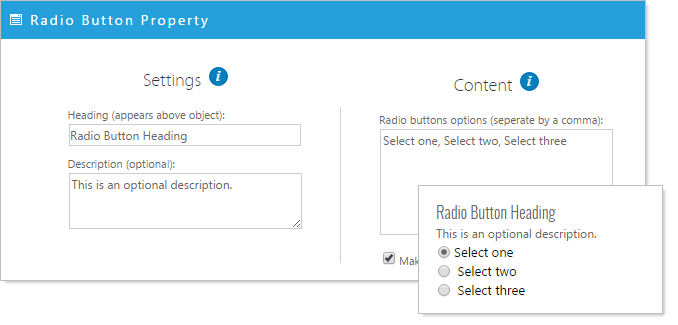
A Radio Button is a labeled icon representing one of a set of options, only one of which can be selected at any time.
Click the 'Edit Form Object' icon . Fill in the options accordingly. If this is to be a mandatory field on the form, click 'Make this required field', and click 'Apply'.
Checkboxes
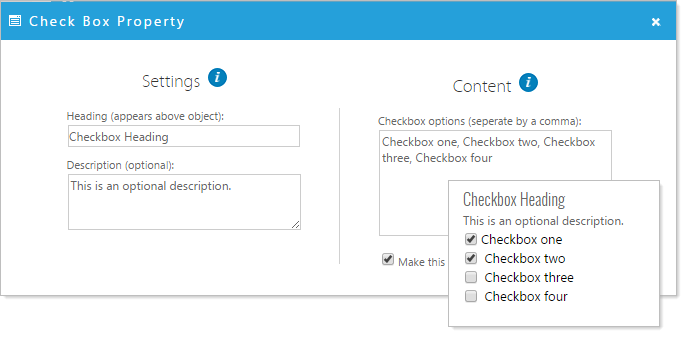
A checkbox is a small box into which a check is entered as the response to a question. Checkboxes can have multiple selections.
Click the 'Edit Form Object' icon . Fill in the options accordingly. If this is to be a mandatory field on the form, click 'Make this required field', and click 'Apply'.
Comments
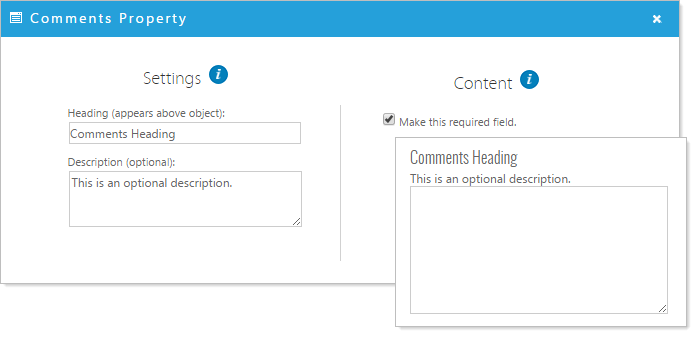
The Comments Object give the visitor the opportunity to enter more than just a few characters of text.
Click the 'Edit Form Object' icon . Fill in the options accordingly. If this is to be a mandatory field on the form, click 'Make this required field', and click 'Apply'.
Email Field
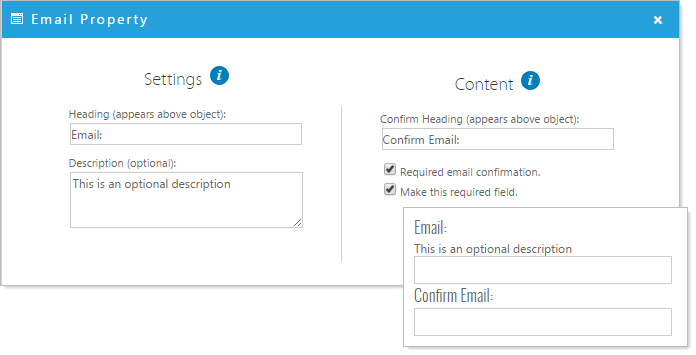
The Email Object is text input that checks for proper email formatting.
Click the 'Edit Form Object' icon . Fill in the options accordingly. If email confirmation is required, (meaning that the user will enter the email address twice) click 'Required email confirmation.' If this is to be a mandatory field on the form, click 'Make this required field', and click 'Apply'.
Text Field
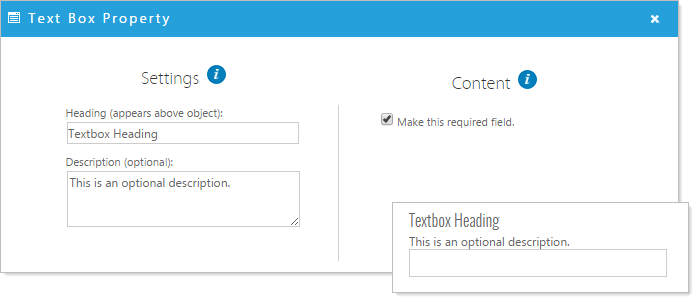
The Text Filed Object is the most commonly used form object and is for one-line text input.
Click the 'Edit Form Object' icon . Fill in the options accordingly. If this is to be a mandatory field on the form, click 'Make this required field', and click 'Apply'.
Divider
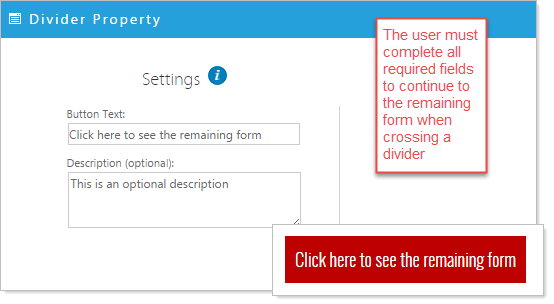
A divider button is used to separate fields on the form. Any fields after the divider button will not display on the page until the divider button is clicked. Conversely, any fields before the divider button will not display once the divider button is clicked.
Click the 'Edit Form Object' icon . Fill in the options accordingly, and click 'Apply'
Submit
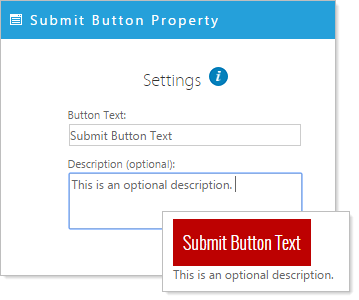
The Submit Object is used at the end of the form for submission.
Click the 'Edit Form Object' icon . Fill in the options accordingly, and click 'Apply'