Upload image for personnel profile.
In this example we are uploading a small image to use next to a personnel bio. Our objective is to have a small image and descriptive text for each individual.
Upload an image
- Click on the 'Upload Images' icon.
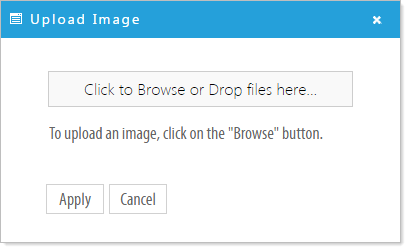
- Click on 'Click to Browse or Drop files here...'
- Select the desired image file, either by dragging and dropping, or by browsing your local filesystem.
- Click 'Apply'
The image is now viewable in the page editor. Unfortunately, the resolution of our image doesn't go well with the default column width.
NOTE: Remember that the default behavior of the Image Widget is to fill the width of it's container.
Let's change it!

Image Settings
- Click on the 'Image Properties' icon
 .
.
- Select 'Use original image size' and click 'Apply'
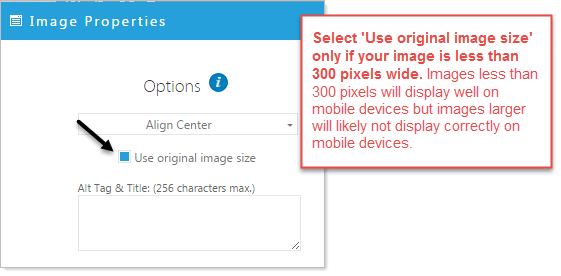
The image is now its default size. This image is a little dull. Let's spice things up by editing the image!

Editing an Image
- Click on the 'Edit this Image' icon
 .
.
- The image will open in an editor.
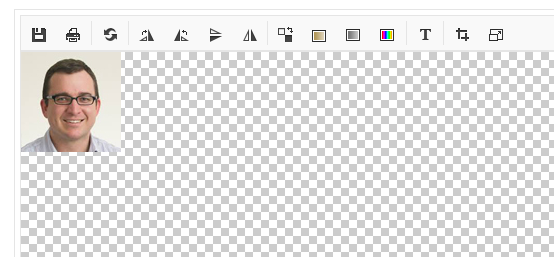
- Click on the 'Hue/Saturation' icon
 .
.
- Select from functions at the top of the editor when you are satisfied with the edits click 'Apply'