Overview
In addition to Settings for the overall Image Gallery you can also change the settings for each image. Images loaded into the Image Gallery are displayed as a thumbnail preview allowing you to see all of your images in your gallery with their relative orientation and size. The thumbnail preview provides a simplified view and access to settings and properties for each image.
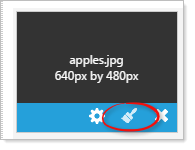
Place your cursor on the image and options for that image appear. The hover screen provides the:
- Name of the image
- The size of the image.
- Image Settings
- Image Edit
- Delete the image.
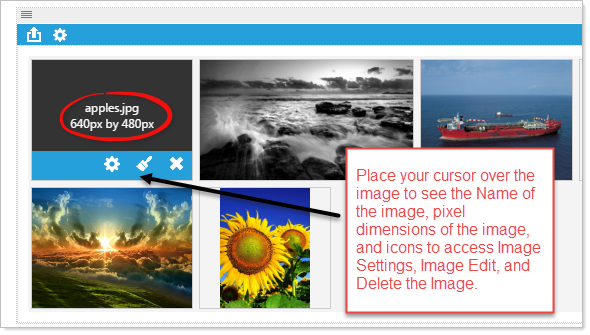
Image Reordering - Drag and DropTo change the order of the images in your image gallery, click and hold the image to drag and drop it into a new position.
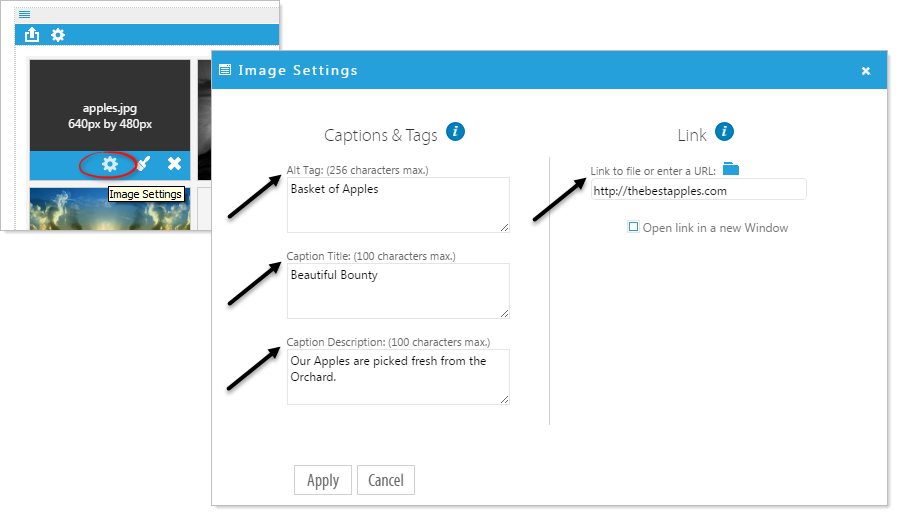
Image SettingsClick on Image Settings to access the Alt Tag, Caption, and/or Description for the image. You can also assign a link to the image.
- Alt Tag
Note: The term "ALT tag" is a common shorthand term used to refer to the ALT attribute within in an IMG tag. Any time you use an image, be sure to include an ALT tag or ALT text. Doing so will provide a clear text alternative of the image for screen reader users. Properly formed Alt Tags are required on all images in order for your website to be ADA Compliant.
- Caption Title
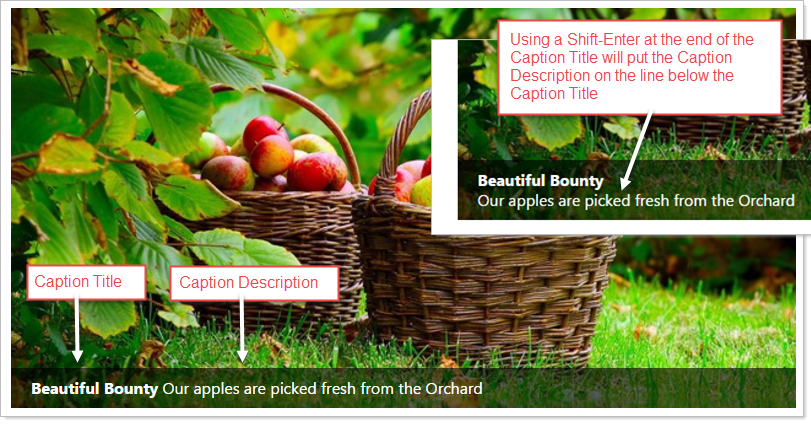
Enter a Caption for your image and it will appear in a bold font when the image is displayed.
- Caption Description
The Caption Description will appear along side the Caption Title but in a regular weight font.
- Link
Click on the blue folder to browse and select a webpage image link or enter the URL. You also have the option to have the link "Open in a new Window"
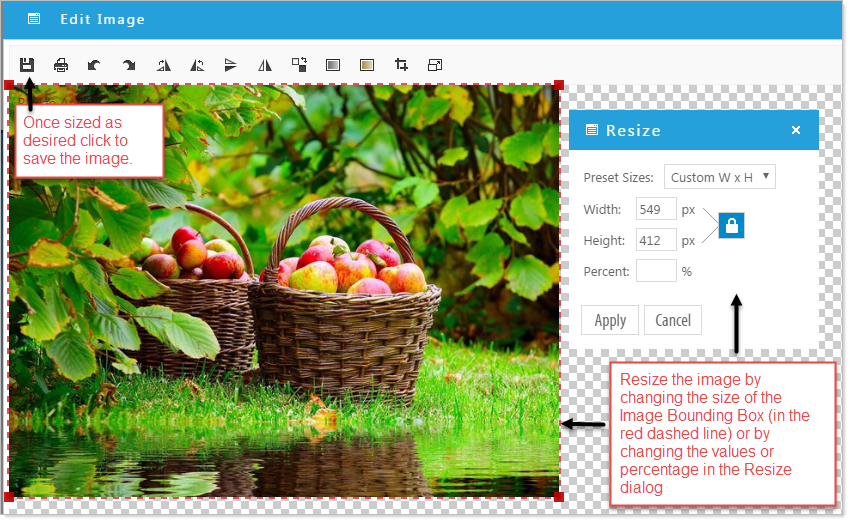
Edit ImageClick on the Edit Image icon to open the image editor.
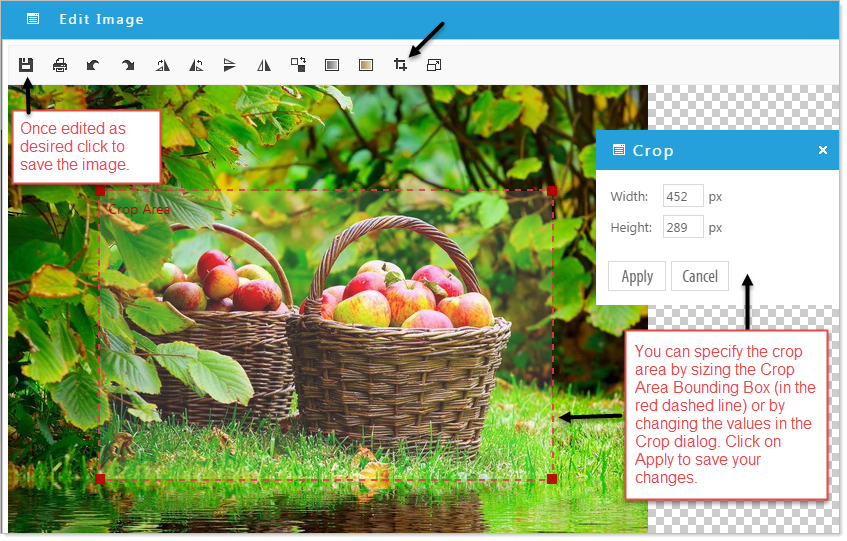
The Image Editor comes with several options for manipulating your image. You can rotate the image, flip the image vertically or horizontally, change the color style of the image to grayscale or sepia, crop, or scale the image. The two most useful options being crop and scale.
Crop an image
Resize an image