Set the form requirements for sending
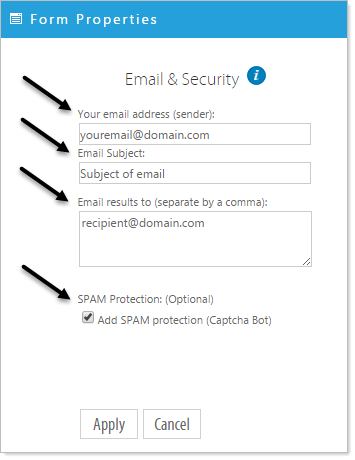
There are several options and or requirements in setting up an email form.All emails contain a 'from', 'subject', and 'to' field. These must be filled in during the setup of your form in order for the form to work.
From - 'Sender'
Enter a Sender email address in the (sender) field. This field is required. This can be you, the creator's address, or a generic address setup for this purpose like, info@yourdomain.com. This field should be a valid email address.
NOTE: Some SMTP relay mail servers will reject an email if the "FROM" email address is the same as the "TO" email address.
Subject - 'Email Subject'
Enter the overall subject of your form. Utilizing this field can be very useful in managing the responses to your form. If you have multiple forms in your project and each is labeled descriptively in the Subject field you can direct your email client to automatically file the responses in set folders.
To - 'Email results to'
Enter the email address to whom the form response should be sent. You can have multiple addresses separating each by a comma.
The SPAM Protection field is Optional but highly recommended.
Confirmation Options
Show a pop-up window as confirmation, link to another page, or send the user to a download file.
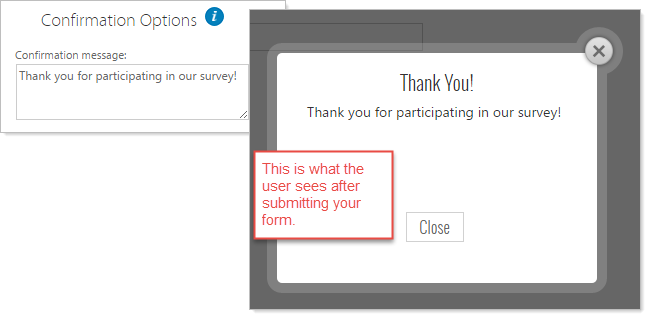
Create a pop-up window with a Message
Enter a Message for the user to see in response to a form submission.
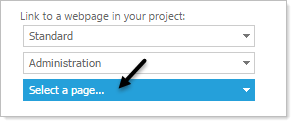
Link to a webpage in your project
Select the webpage from within the project to send the user to.
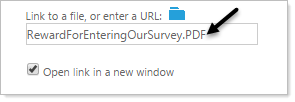
Link to a file or an external URL
Enter a document for the user to see in response to a form submission.