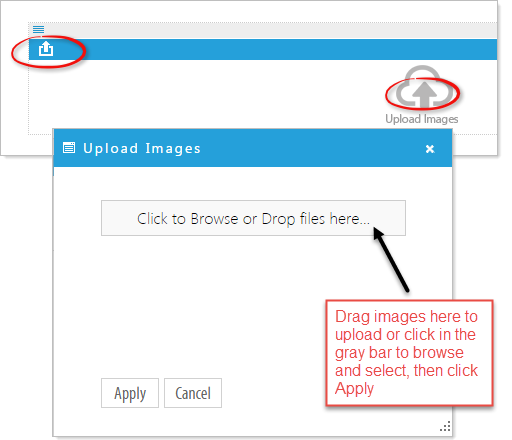
Initially there is one option :Upload images
Highlight and drag images to the gray bar then release to upload or click on the gray bar to browse and select images. Click Apply to finish the upload.
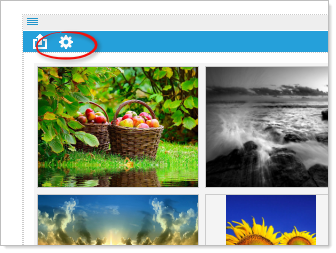
Once you have loaded images there is an additional option for Image Gallery Settings.
The Settings for the Image Gallery offer options to change the look and feel of your slideshow.
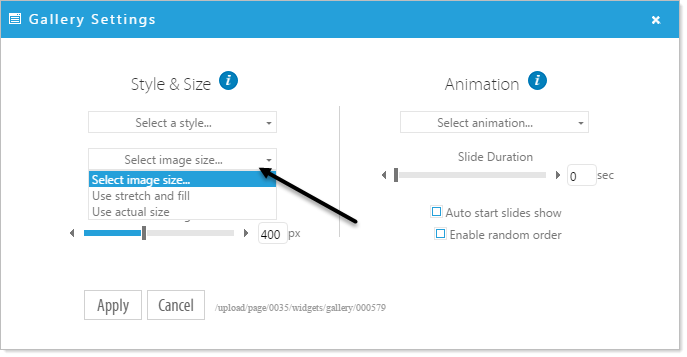
Configuring the Settings for the Image Gallery.
Style - “Select a style” offers you 3 options:
- Slideshow – A standard slidesho
- Slideshow with Thumbnails – A standard slideshow that displays a thumbnail preview of the images in the slideshow below the slideshow that allows the user to click and navigate to a particular image.
- Slideshow with Navigation – A Standard slideshow that displays a pager (circular dots) below the slideshow that allows the user to click and navigate to a particular image.
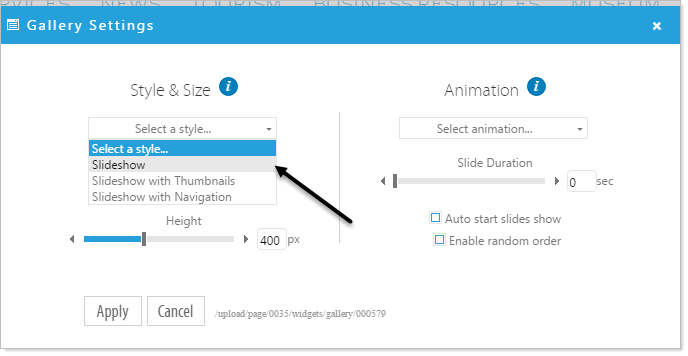
Image Size - “Select image size” offers you 2 options
- Use stretch and fill – Takes each image, ensures that it fills the width and height of the slideshow and then centers the image. The default height for Stretch and Fill is 400 pixels. The height is adjustable.
- Use actual size – Allows you to display each image at it’s original width without any scaling or stretching. The default height for Actual Size is 0. To keep your images at their original size always use 0 for the height.
Note: The best practice for an effective Image Gallery is to edit images to the same size, a size that maximizes the Image Gallery area. However, editing each image is often time consuming and for some challenging. For these reasons, Titanium has the option Stretch and Fill that will fill the Image Gallery area without editing the size of the image.
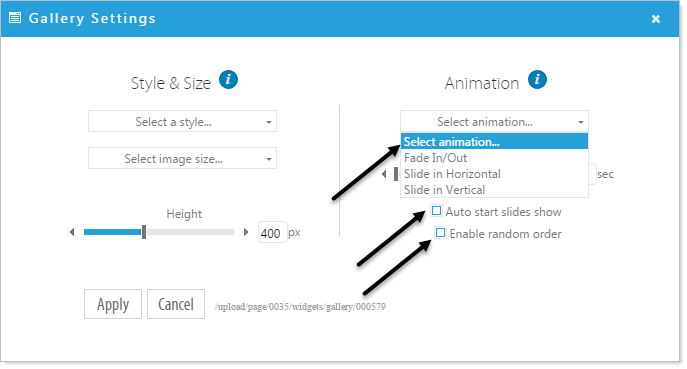
AnimationThe Animation section offers the ability to configure slideshow behavior.
- Animation - “Select animation...” options configure how images transition in and out. Set images to Fade In/Out (default), Slide in Horizontal, Slide in Vertical. The Animation Type is used for all images in the Image Gallery.
- Slide Duration – “Slide Duration” determines how long each slide is displayed before it transitions to the next slide.
- Auto Start – The “Auto start slideshow” button determines whether the slideshow runs by itself or if the user has to click the navigation arrows to see each slide.
- Random Order – The “Enable random order” button will show your slides in a random order.