Importing a Video
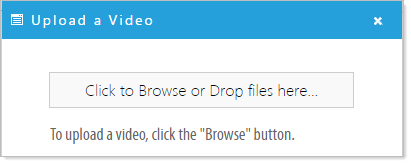
Upload a Video
- Click on the 'Upload a Video' icon
 , or, if no video has been uploaded in the widget, click the icon in center of the Media Player editor.
- Either drag and drop your video file onto the 'Click to Browse or Drop files here...' button, or click the button to browse to your video file, click 'Apply'
Link to a Video
- Click the 'Settings' icon
 .
.
- In 'MediaPlayer Settings' paste your YouTube link in the 'Link to external video' form, and click 'Apply'

Resizing the Media Player
Changing the Aspect Ratio
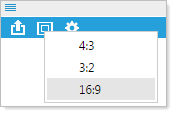
- Click the 'Set aspect ratio' icon
 and select the desired Aspect Ratio.
For default, HD YouTube videos, the default ratio is 16:9 (for default non HD YouTube videos, the ratio is 4:3). (Since our demo video is an HD YouTube video, we select 16:9).
Manually Specifying the Width and Height Parameters
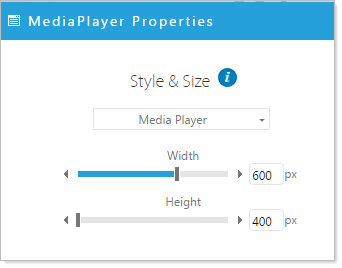
- Click the 'Media Player Properties' icon .
- Set the Width and Height parameters to your desired targets, and click 'Apply'