Edit an Article
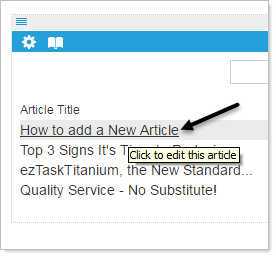
Click on the title of the article to edit that article. The article will open in the Text Editor, change and edit your article as desired then click on 'Apply' to Save the article.
- You can modify all available fields, including: Title, Article body, Created date, Expire On and Add this article to RSS feed.
- You also have the option to delete the article.
You article will appear in the same order of the original archived article unless you change the Creation Date and apply.
Managing Articles in the Communicator
Permanent Links
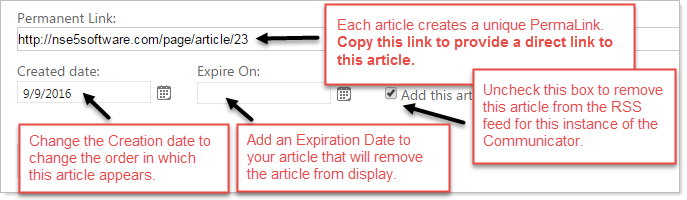
A Permanent Link is created when you save an article. This is a direct link to the article and cannot be edited. Use this link to share this particular article with your audience.
You may find a Permanent Link useful when distributing articles like individual Press Releases.
Creation Date
Each article posted has a date-time value, which is called Creation Date. Normally , this is set to the date when you publish the post for the first time. But you can change the Creation Date date for any article, and you can do this either when you first post it or later on.
The Creation Date is important because it controls the order that articles are shown in:
- The post that appears first when a reader visits your articles is the one with the most-recent Creation Date.
- If you have more than one article, then the next-most-recent article is on the screen underneath the first one. And then the second-next-most-recent, etc.
You can modify the creation date by clicking on the calendar icon  to the right of the 'Created date' text and selecting your desired date from the calendar or simply enter a new date in the date box. (The default date is set, at the time of the creation of the article.) Changing the Creation Date will not change the Permanent Link.
It is sometimes useful to edit and recycle certain articles as part of a news feed. For instance, there may be occasions when using your Communicator as a news feed when there is just no news to publish. You could keep certain information articles on hand to post to your feed that informs or reminds your audience of valuable information in place of absent current news articles.
Expiration Date
You can modify the Expiration Date by clicking on the calendar icon to the right of the 'Expire On' text and selecting your desired date from the calendar or simply enter a new date in the date box.
The primary use of article expiration is to expire time-sensitive content. If the article contains information about an upcoming event or announcement, for example, and the event or announcement has passed you no longer want the article to display.
Please note this does NOT delete the article it simple flags the article to not display. You can edit the article to change or eliminate the expiration date.
Add this article to RSS feed.
By default the 'Add this article to RSS feed' is checked. Uncheck this box to remove this article from inclusion in the RSS Feed for the article.
Unchecking this box does not delete the article but does remove it from the feed for this instance of the Communicator.
You can read more about RSS feed in the help section on Widgets>RSS feed