Adding a Recurring Event:
- Click on the date you wish to add an Event. Select 'Add New Event'.
- Complete the Add Event screen as explained in the previous section. Click on the Recurrence option below the Description.
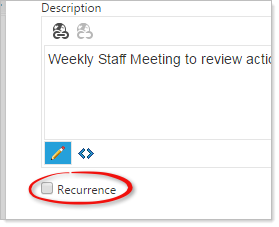
The pop-up will refresh to include a variety of options for Recurring Events.
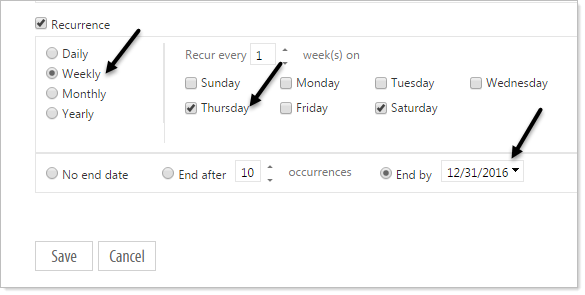
In this example we are creating a recurring event, Weekly Staff Meeting, that occurs every Thursday for remainder of 2016, by selecting then saving:
- Weekly
- Recur every 1 week(s) on Thursday
- End by 12/31/2016
To create an exclusion to your Recurring event:
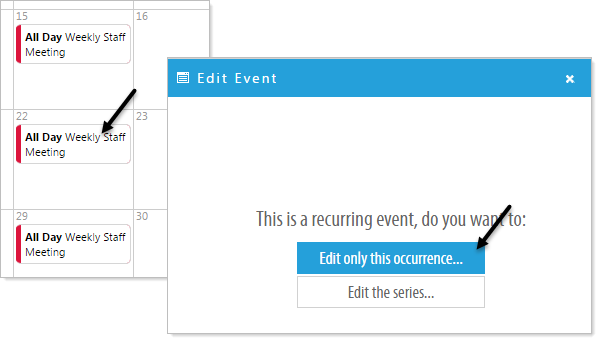
First create and save the Recurring Event as described above. While in Design Mode click to edit the recurring event you would like to exclude. A pop-up will appear with the options to:
- Edit only this occurrence...
- Edit the series...
Click on 'Edit only this occurrence...' You can then delete that event and it will no longer be a part of the recurring dates for that event.
Changing options for one instance of a recurring event:
You can change any of the details for one instance of an event that is part of a Recurring Event Series but once saved that event event WILL NO LONGER BE A PART OF THE SERIES.
Click on the date of the event (that is part of a series)
Select 'Edit only this occurrence...'
Edit the details of your event as describe above and save.
Changing options for a recurring event:
Select 'Edit the series...'
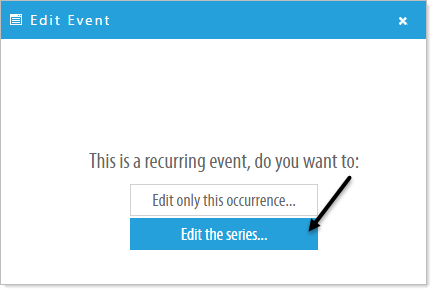
Edit the details of your event as described above and save. This will save the changes to ALL events in the series.