Adding Text
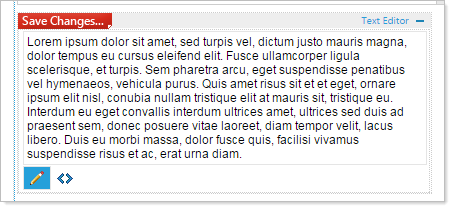
Click inside the Text Editor, and start typing. When you are finished typing click 'Save Changes' at the top left of the Text Editor.
Styling the Text
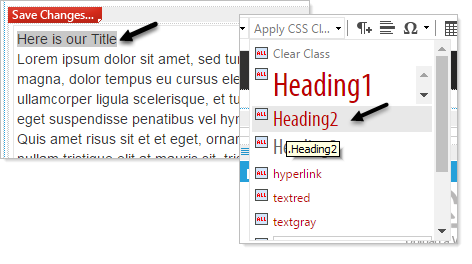
Text entered into the Text Editor is automatically styled to the body font of your site. You can can set the style by highlighting the text you wish to style.
Click the 'Apply CSS Class' and select a style from the dropdown and Save Changes
(In this example, we will edit the 'Apply CSS Class', and select 'Heading 2')
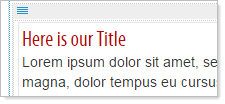
Your new formatting is displayed in the Text Editor widget.
Adding an Image
Click the 'Image Manager' icon  Select the image either from the existing
uploads, or click the 'Upload' icon
Select the image either from the existing
uploads, or click the 'Upload' icon  to browse your local file system.
Once you have selected your image, a preview of it will be displayed in the Image Manager.
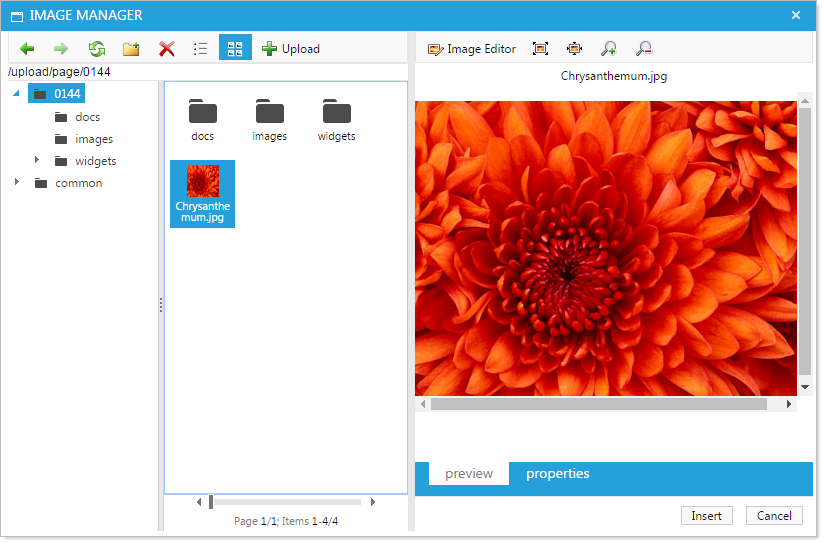
- You can edit your image before Inserting it.
- When you are ready to add your image to the page, click the 'Insert' button at the bottom right of the Image Manager.
- The image is now viewable in the Text Editor.
Adding a hyperlink
- Highlight some content in the Text Editor (e.g. some text, or an image).
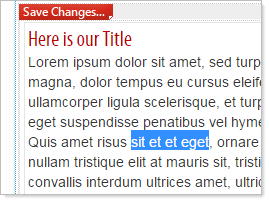
- Click on the Hyperlink Manager' icon
 .
.
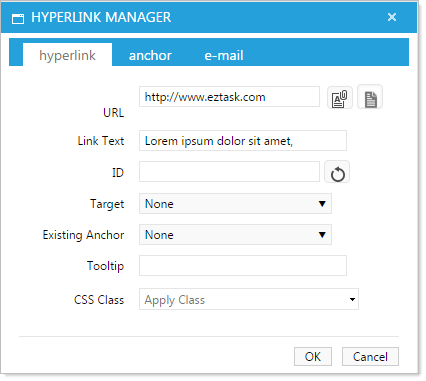
- Add a url, or email address. You can also edit the Link Text.
- Click 'OK'.
The selected content is now a functioning link.